
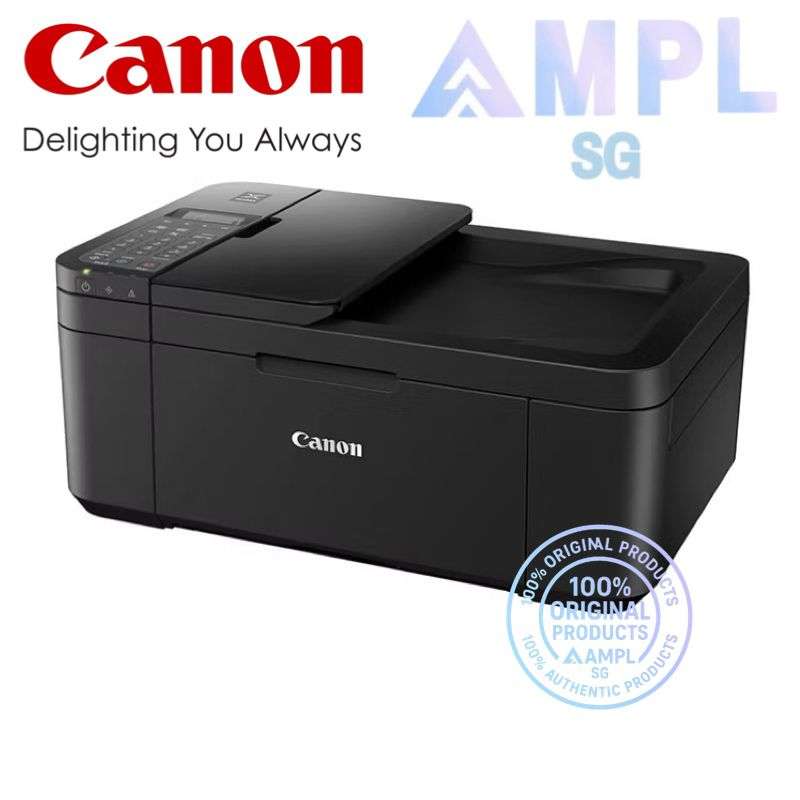
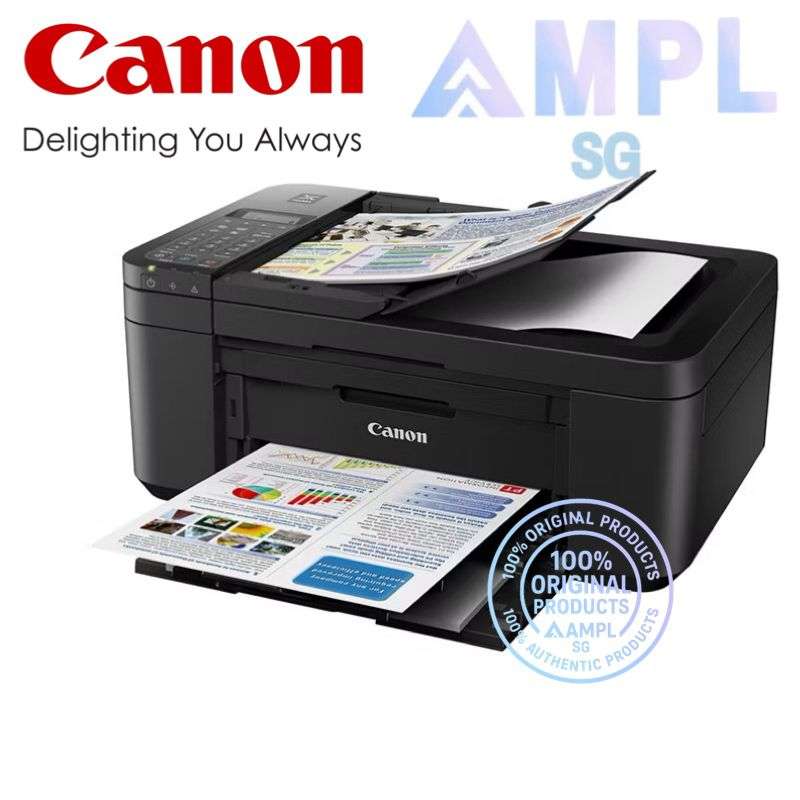
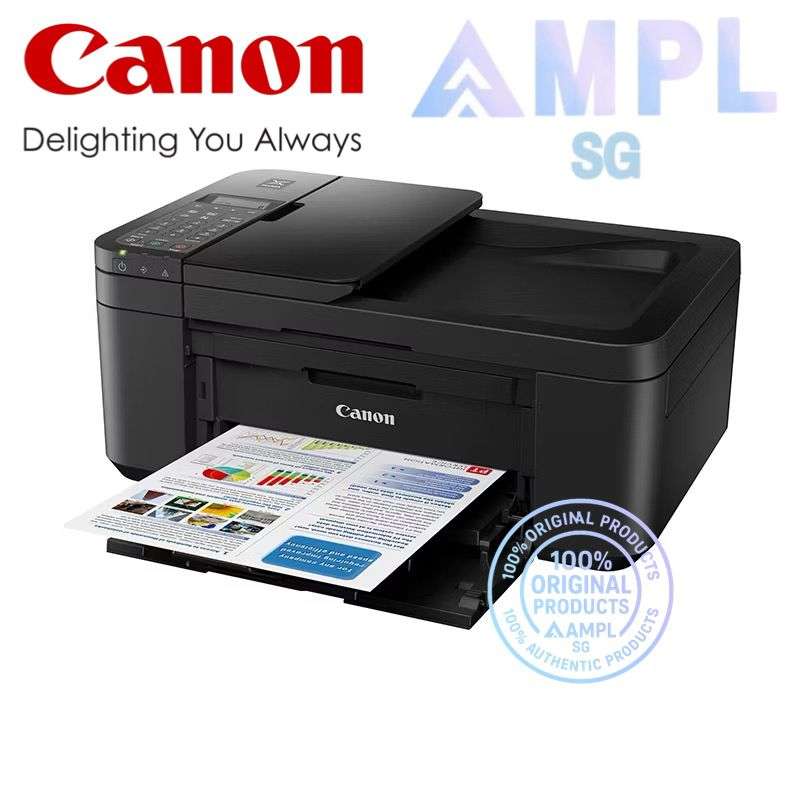
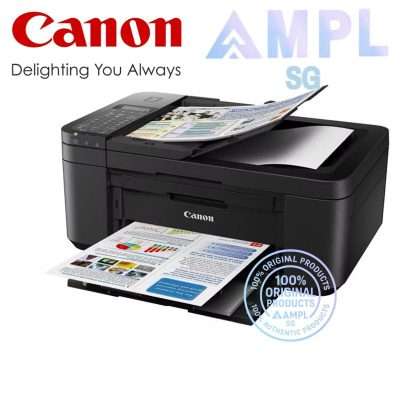
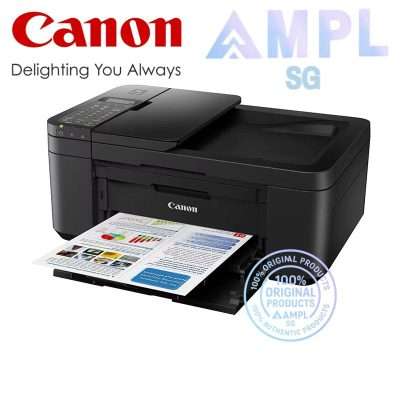
NEW CANON E4570 Wireless Print/Scan/Copy/Fax Wireless – WiFi Auto Document Feeder With Fax & Auto Feeder /PG-47, CL-57
Compact Wireless All-In-One with Fax and Automatic 2-sided Printing for Low-Cost Printing

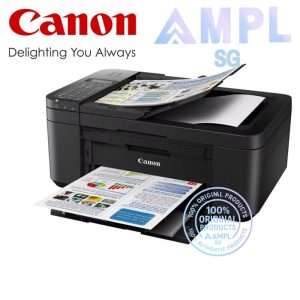
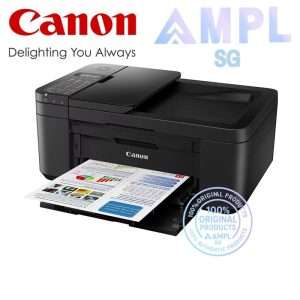
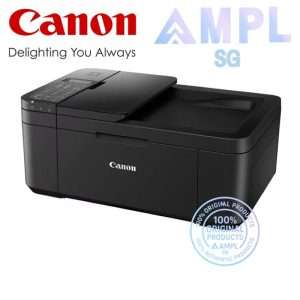
| Compact Wireless Office All-In-One with Fax and Auto Duplex Printing | |
| Product Dimensions (W x D x H) Approx. 435 x 295 x 189 mm | |
| Document ISO Print Speed Approx. 8.8 ipm (B&W) / 4.4 ipm (colour) • Low-cost ink cartridges | |
| • 20-sheet Automatic Document Feeder | |
| • Support wireless and mobile printing • One-touch wireless connect | |
| Automatic Duplex Printing • Borderless photo printing up to A4 | |
| Cartridge = PG-47, CL-57S – OPTIONAL CL-57 | |
| Print Head / Ink | |
| Type | FINE Cartridge |
| Number of Nozzles | Total 1,280 nozzles |
| Ink Cartridges | PG-47, CL-57S (Optional: CL-57) |
| Maximum Printing Resolution | 4800 (Horizontal)*1 x 1200 (Vertical) dpi |
| Print Speed*2 (Approx.)
Click here for summary report |
|
| Document (ESAT/Simplex) | 8.8 / 4.4 ipm (Mono/Colour) |
| Document (ESAT/Duplex) | 1.9 ipm (Colour) |
| Document (FPOT Ready/Simplex) | 11 / 19 sec (Mono/Colour) |
| Photo (4 x 6″) (Borderless) | 65 sec |
| Printable Width | Up to 203.2 mm (8″) Borderless: Up to 216 mm (8.5″) |
| Printable Area | |
| Borderless Printing*3 | Top/Bottom/Right/Left margin: Each 0 mm |
| Bordered Printing | Envelope (#10/DL): Top margin: 8 mm Bottom margin: 12.7 mm Left/Right margin: 5.6 mmLTR, LGL: Top margin: 3 mm Bottom margin: 5 mm Left margin: 6.4 mm Right margin: 6.3 mmCustom size (Width: 101.6 – 215.9 mm, Length: 152.4 – 676 mm): Top margin: 3 mm Bottom margin: 5 mm Left margin: 3.4 mm Right margin: 3.4 – 9.3 mm Others: |
| Bordered Auto 2-Sided Printing | A4/LTR: Top/Bottom margin: 5 mm A4: Left/Right margin: 3.4 mm LTR: Left margin: 6.4 mm, Right margin: 6.3 mm |
| Support Media | |
| Front Tray | Plain Paper (64 – 105 g/m²) Photo Paper Pro Platinum (PT-101) Photo Paper Pro Luster (LU-101) Photo Paper Plus Glossy II (PP-208) Matte Photo Paper (MP-101) High Resolution Paper (HR-101N) Photo Paper Plus Semi-Gloss (SG-201) Photo Stickers (PS-208, PS-808) Envelope |
| Paper Size | |
| Front Tray | A4, A5, B5, LTR, LGL, Envelope (#10, DL), 4 x 6″, 5 x 7″, 8 x 10″[Custom size] Width: 101.6 – 215.9 mm Length: 152.4 – 676 mm |
| Paper Size (Borderless)*3 | A4, LTR, 4 x 6″, 5 x 7″, 8 x 10″ |
| Paper Handling (Maximum Number), Front Tray |
|
| Plain Paper (A4/LTR) | Plain Paper (64 g/m²) = 100 |
| Photo Paper (4 x 6″) | Other Canon Photo Paper = 20 Photo Paper Plus Glossy II (PP-208) = 20 |
| Photo Paper (5 x 7″) | 10 |
| Support Media for Auto 2-sided printing | |
| Type | Plain Paper |
| Size | A4, LTR |
| Paper Weight | |
| Cassette | Plain Paper: 64 – 105 g/m² Canon Paper: Max. 300 g/m² (Photo Paper Pro Platinum, PT-101) |
| Ink End Sensor | Dot count |
| Print Head Alignment | Manual |
Scan*4
| Scanner Type | Flatbed (ADF / Platen) |
| Scanner Method | Contact Image Sensor (CIS) |
| Optical Resolution*5 | 600 x 1,200 dpi |
| Scanning Bit Depth (Input/Output) | |
| Greyscale | 16 / 8 bit |
| Colour | RGB each 16 / 8 bit |
| Line Scanning Speed*6 (Approx.) | |
| Greyscale | 1.5 ms/line (300 dpi) |
| Colour | 3.5 ms/line (300 dpi) |
| Maximum Document Size | |
| Flatbed | A4 / LTR |
| ADF | A4 / LTR / LGL |
Copy
| Compatible Media | |
| Size | B5, A5, Legal, A4, LTR, 4 x 6″, 5 x 7″ |
| Type | Plain Paper Photo Paper Pro Platinum (PT-101) Photo Paper Pro Luster (LU-101) Photo Paper Plus Semi-Gloss (SG-201) Photo Paper Plus Glossy II (PP-208) Glossy Photo Paper (GP-508) |
| Image Quality | 3 positions (Economy, Standard, High) |
| Density Adjustment | 9 positions, Flatbed Auto intensity (AE copy) |
| Copy Speed*7 (Approx.)
Click here for summary report |
|
| Document (Colour): (sFCOT/Simplex) / (sESAT/Simplex) | 27 sec / 3.6 ipm |
| Document (ADF): Colour (ESAT/Simplex) | 2.7 ipm |
| Document (ADF): Mono (ESAT/Simplex) | 6.4 ipm |
| Multiple Copy | |
| Mono/Colour | Max. 99 pages |
Fax
| Type | Desktop Transceiver (Super G3 / Colour Communication) |
| Applicable Line | PSTN |
| Transmission Speed*8 | |
| Mono/Colour (Approx.) | 3 sec / 1 min |
| Fax Resolution (Approx.) | |
| Mono | 8 pels/mm x 3.85 lines/mm (Standard) 8 pels/mm x 7.7 lines/mm (Fine) 300 x 300 dpi (Extra Fine) |
| Colour | 200 × 200 dpi |
| Print Size | A4, LTR, LGL |
| Scanning Width | A4 / LTR |
| Modem Speed | Max. 33.6 kbps (Automatic fall back) |
| Compression | |
| Mono | MH, MR, MMR |
| Colour | JPEG |
| Gradation | |
| Mono | 256 levels |
| Colour | RGB each 8 bit |
| ECM (Error Correction Mode) | Available |
| Automatic Dialling | |
| Coded Speed Dialing | Max. 20 locations |
| Group Dialing | Max. 19 locations |
| Transmission/Reception Memory*9 | 50 pages |
PC Fax
| Type | Windows: Available macOS: Available |
| Destination Number | 1 location |
| Mono/Colour | B/W transmission only |
Network
| Protocol | SNMP, HTTP, TCP/IP (IPv4/IPv6) |
| Wireless LAN | |
| Network Type | IEEE 802.11b/g/n 2.4 GHz, Supported Channels: 1 – 13 (TW: Supported Channels: 1 – 11 only) |
| Security | WPA-PSK (TKIP/AES) WPA2-PSK (TKIP/AES) |
| Direct Connection (Wireless LAN) | Available |
Printing Solutions
| AirPrint® | Available |
| Mopria® Print Service | Available |
| Canon Print Service (for Android) |
Available |
| Cloud Integration Service (from smartphone/tablet) (from printer) |
Available |
| Canon PRINT (for iOS/Android) |
Available |
System Requirements*10
| Windows 10 / 8.1 / 7 SP1 (operation can only be guaranteed on a PC with a pre-installed Windows 7 or later),macOS v10.13.6 ~ 11.0,ChromeOS |
General Specifications
| Operation Panel | |
| Display | 2-Line LCD |
| Language | 32 Languages Selectable: Japanese, English (mm & inch), German, French, Italian, Spanish, Portuguese, Dutch, Danish, Norwegian, Swedish, Finnish, Russian, Ukrainian, Polish, Czech, Slovene, Hungarian, Slovakian, Croatian, Romanian, Bulgarian, Turkish, Greek, Estonian, Latvian, Lithuanian, Simplified Chinese, Korean, Traditional Chinese, Indonesian, Vietnamese |
| ADF | |
| Paper Handling (Plain Paper) | A4, LTR: 20, LGL: 5 |
| Interface | USB 2.0 |
| Operating Environment*11 | |
| Temperature | 5 – 35°C |
| Humidity | 10 – 90% RH (no dew condensation) |
| Recommended Environment*12 | |
| Temperature | 15 – 30°C |
| Humidity | 10 – 80% RH (no dew condensation) |
| Storage Environment | |
| Temperature | 0 – 40°C |
| Humidity | 5 – 95% RH (no dew condensation) |
| Quiet Mode | Available |
| Acoustic Noise (PC Print) (Approx.) | |
| Plain Paper (A4, Mono)*13 | 56.5 dB(A) |
| Power | AC 100 – 240 V, 50/60 Hz |
| Power Consumption (Approx.) | |
| OFF | 0.3 W |
| Standby (scanning lamp is off) USB connection to PC |
0.8 W |
| Copying*14 (USB connection to PC) |
7 W |
| Duty Cycle | Up to 1,200 pages/month |
| Dimensions (WxDxH) (Approx.) | |
| Factory Configuration | 435 x 295 x 189 mm |
| Output/ADF Trays Extended | 435 x 592 x 438 mm |
| Weight (Approx.) | 5.8 kg |
Page Yield*15
- Ink droplets can be placed with a pitch of 1/4800 inch at minimum.
- Document print speeds are the average of ESAT (Word, Excel, PDF) in Office Category Test for the default simplex mode, ISO/IEC 24734.
Photo print speed is based on the default setting using ISO/JIS-SCID N2 on Photo Paper Plus Glossy II and does not take into account data processing time on host computer.
Print speed may vary depending on system configuration, interface, software, document complexity, print mode, page coverage, type of paper used etc. - Paper types NOT supported for borderless printing are as follows: Envelope, High Resolution Paper, T-Shirt Transfer, Photo Stickers.
- TWAIN driver (ScanGear) is based on the TWAIN specification V1.9 and requires the Data Source Manager comes with the operating system.
- Optical resolution scan is available, only when you use TWAIN Driver.
Optical resolution is a measure of maximum hardware sampling resolution, based on ISO 14473 standard. - The fastest speed in Hi-Speed USB on Windows PC. Transfer time to computer is not included.
- Copy speeds are the average of sFCOT and sESAT, ISO/IEC 29183.
Copy speeds (ADF) are ESAT of copy in sequence, ISO/IEC 24735.
Copy speed may vary depending on document complexity, copy mode, page coverage, type of paper used etc. and does not take into account warm-up time. - Black & white document fax transmission speed is based on default setting using ITU-T No.1 chart.
Colour document fax transmission speed is based on default setting using Canon Colour Fax Test Sheet.
Actual transmission speed may vary depending on document complexity, fax settings at receiving end, and line conditions etc. - Page count is based on ITU-T No.1 chart or Canon FAX Standard Chart No.1.
- Please visit https://asia.canon/support to check OS compatibility and to download the latest driver updates.
- The performance of the printer may be reduced under certain temperature and humidity conditions.
- For the temperature and humidity conditions of papers such as photo paper, refer to the paper’s packaging or the supplied instructions.
- Acoustic Noise is measured based on ISO 7779 standard with default setting.
- When copying ISO/JIS-SCID N2 (printed by inkjet printer) on A4 size plain paper using default settings.
- Page yields may vary depending on content coverage, print settings, temperature, humidity, and frequency of printing.
- Declared yield value is in accordance with ISO/IEC 24711, using the ISO/IEC 24712 colour chart. Values obtained by continuous printing.
- Declared yield value is in accordance with ISO/IEC 29102, using the ISO/IEC 29103 chart. Values obtained by continuous printing.
Black ink is not used when printing under this condition. However, a minimal amount of black ink is used for maintenance purposes.
Disclaimer
|
Reviews
There are no reviews yet.